Introduction
This guide explains how to install and configure WireGuard with an MFA overlay using Defguard. The setup consists of three main steps, to be executed after requesting a token from ETRO_ICT@vub.be.
- Activate MFA/TOTP on your account
This secures your Defguard account with two-factor authentication before you configure VPN access. - Install the Defguard client
This installs the application needed to manage and connect to the WireGuard VPN from your device. - Configure and connect to the VPN
This links your device to Defguard using the provided enrollment token and allows you to connect securely to the Brussels VPN location.
Once these steps are completed, your device will be ready to connect to the VPN using WireGuard with MFA authentication.
1) Activate your account with MFA, TOTP
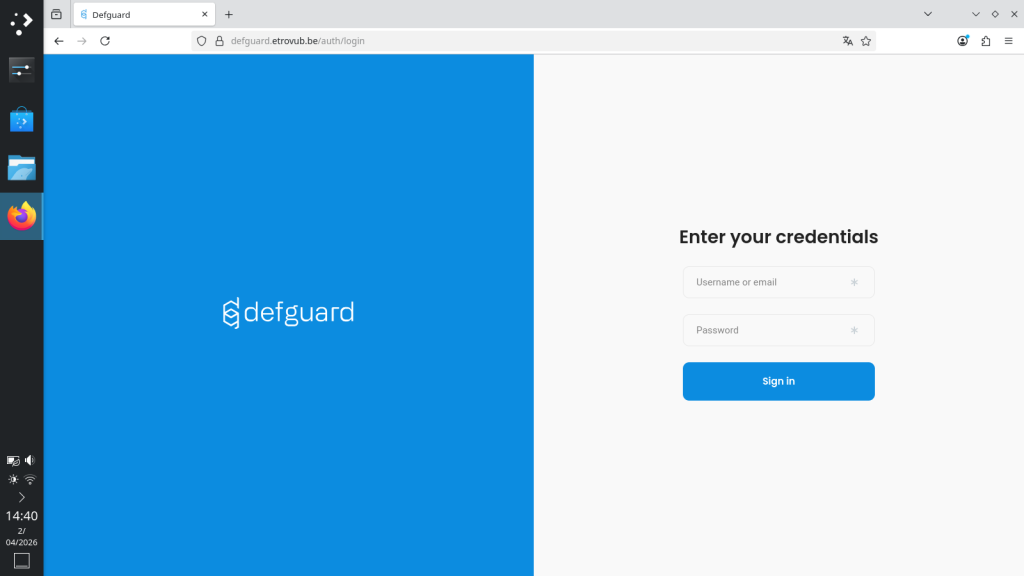
Go to:
Log in with your ETROVUB credentials. Use only your username, without @etrovub.be.
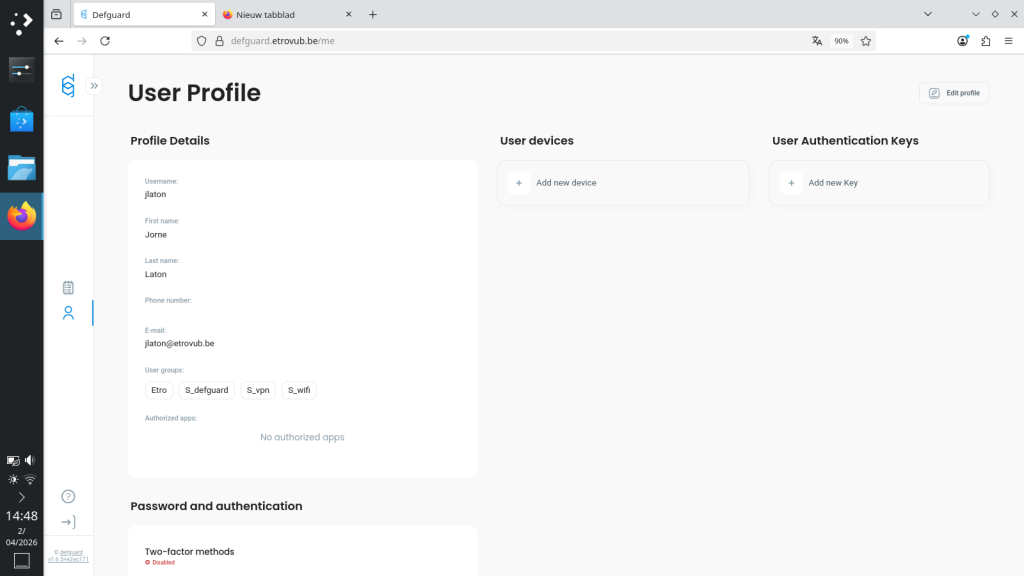
Click Edit profile in the top-right corner.
Enable TOTP — Time-Based One-Time Password — as your two-factor authentication method by clicking on the gear wheel next to TOTP. You may need to do this twice.
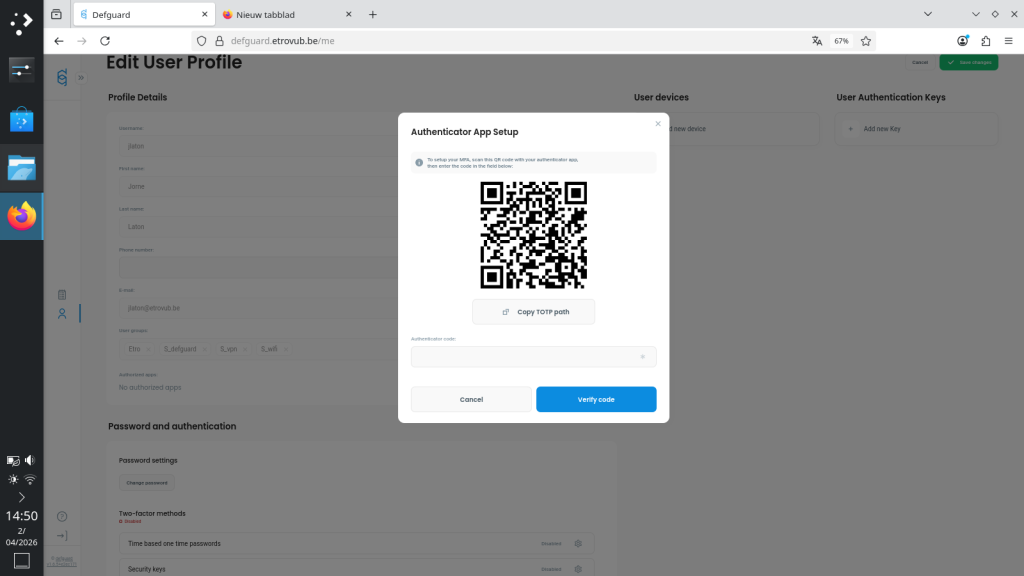
Use an authenticator app, or equivalent, to register Defguard by scanning the QR code. Once registered, enter the one-time password code to confirm.
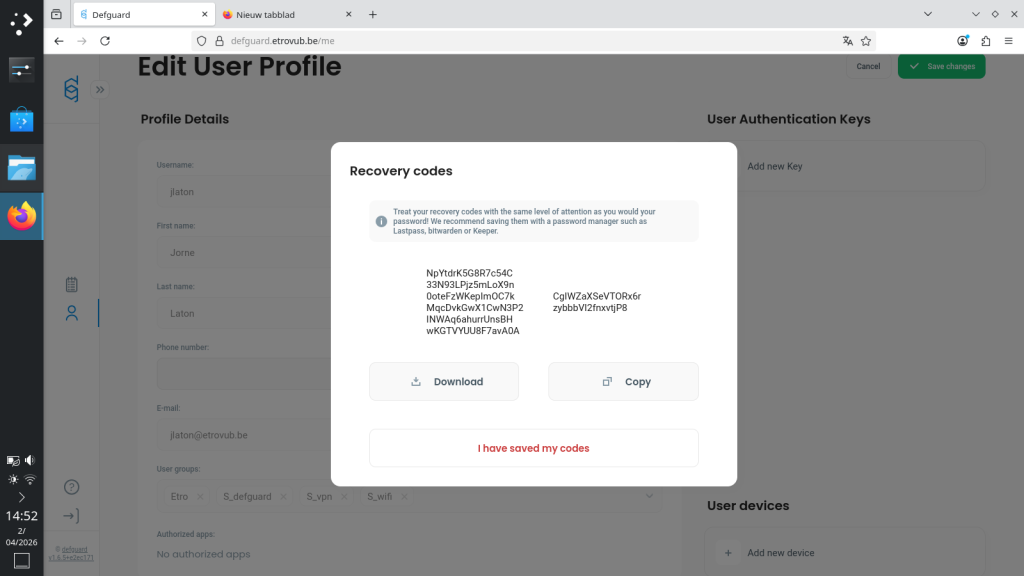
Recovery codes are not strictly necessary, as ICT can intervene if needed. Click I have saved my codes.
Do not forget to save your changes.
If you are logged out, log back in using your authentication code.
2) Install your Defguard client
Go to::
https://enroll.etrovub.be
Start the enrollment process.
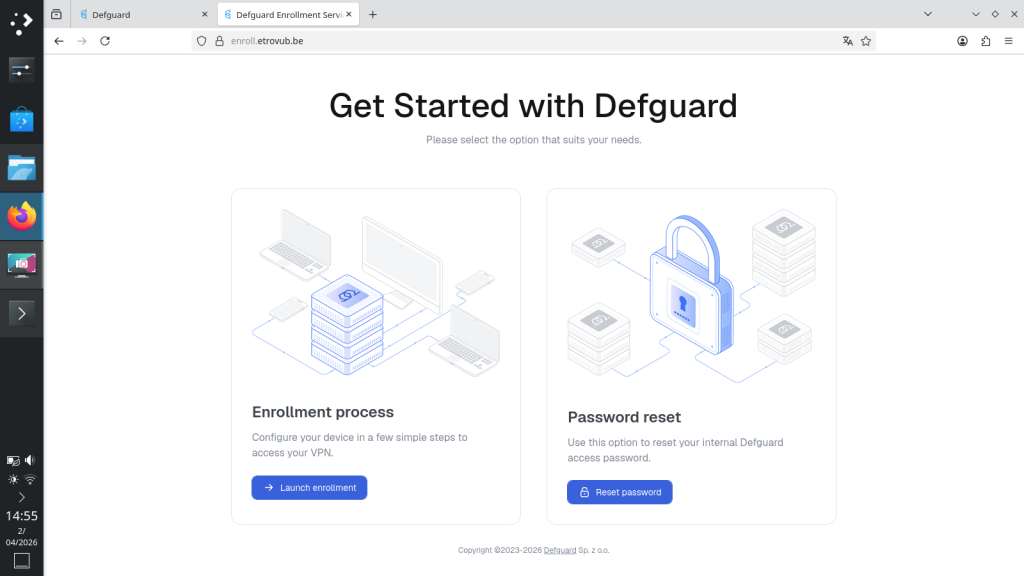
Click Launch enrollment.
You will be asked to enter the token sent by your administrator.
Download and install the client for your operating system.
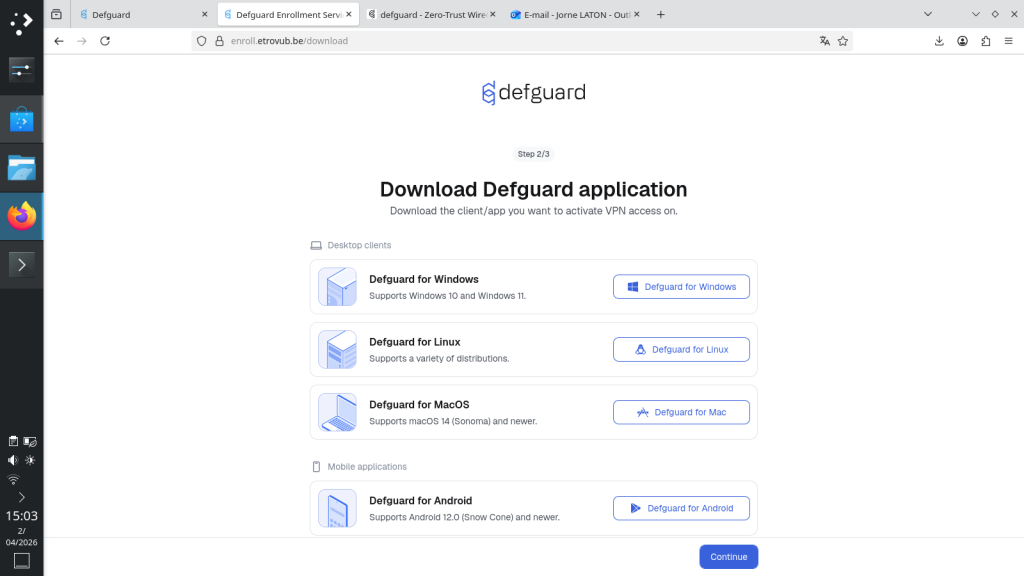
Once the client has been installed, open it
3) Configuration of the connection in the client
In the Defguard client, click Add instance in the left menu bar.
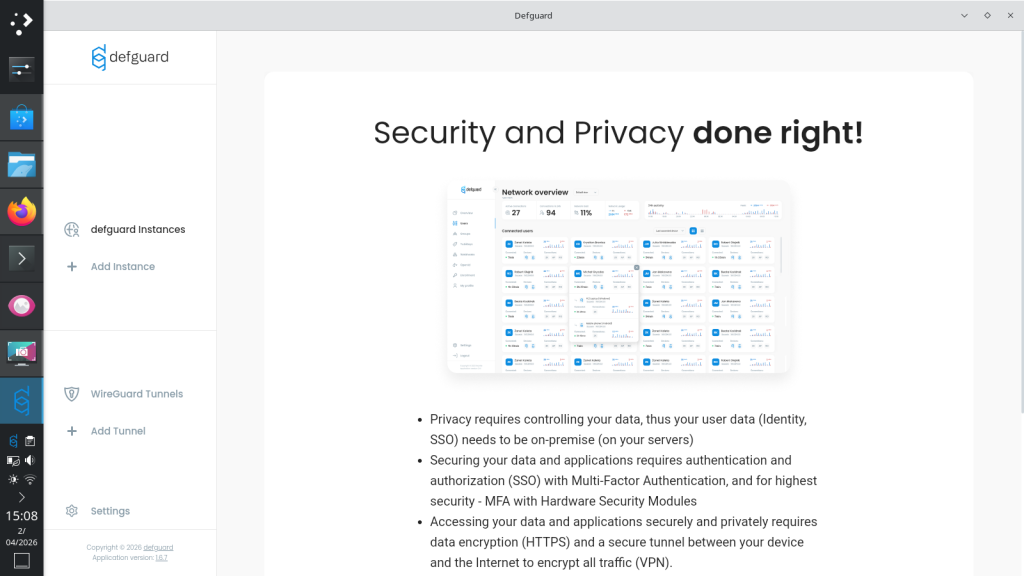
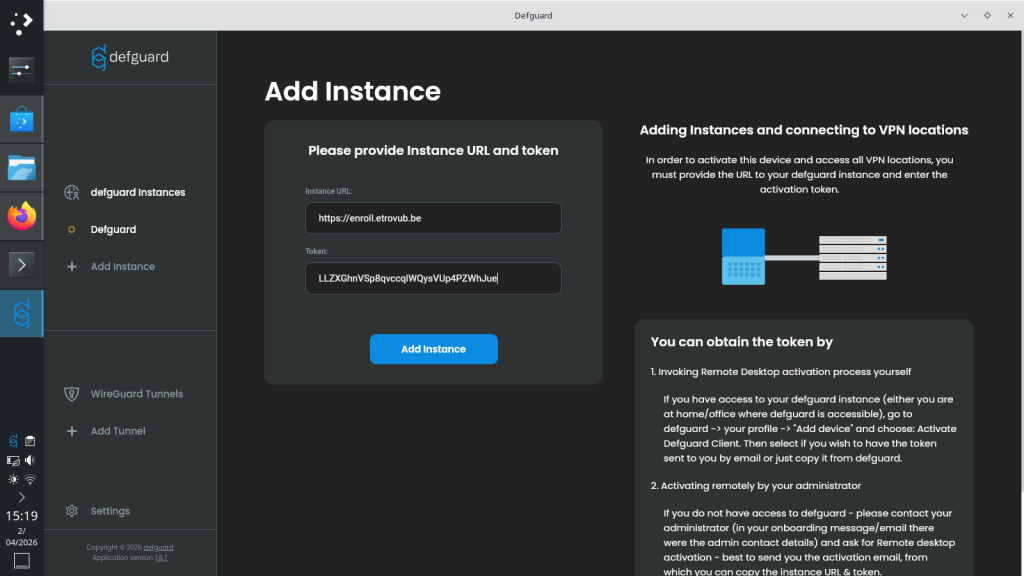
Enter the URL and token you received from your administrator.
For each supplementary device please request a new token at ETRO_ICT@vub.be
Choose a name for your device.
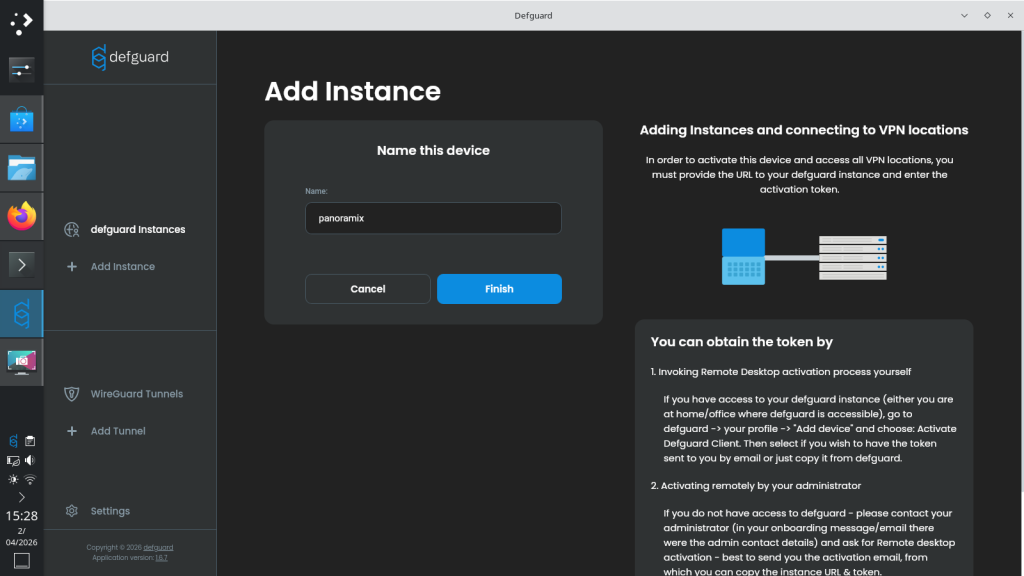
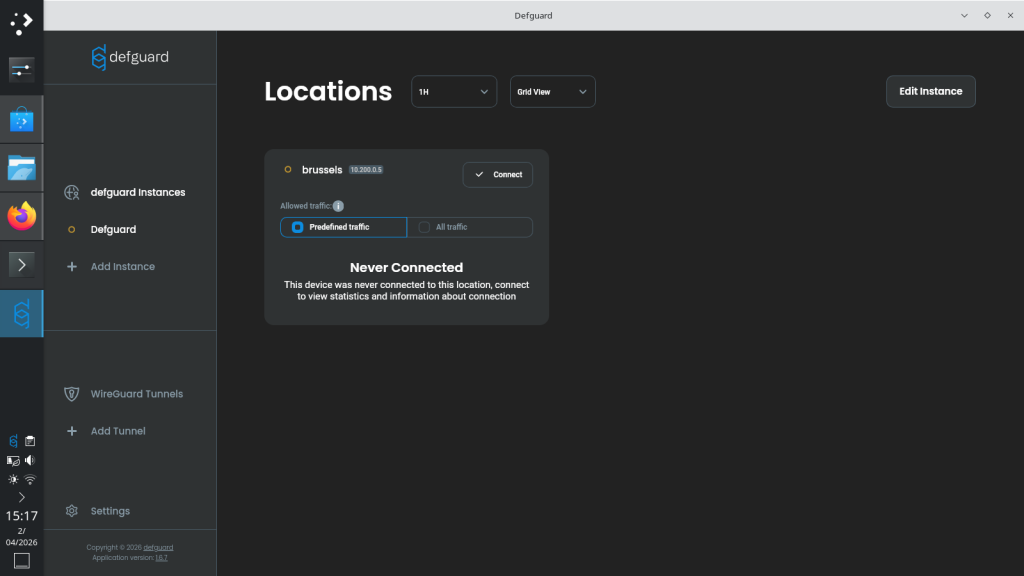
Once the instance has been created, click Connect for the Brussels location.
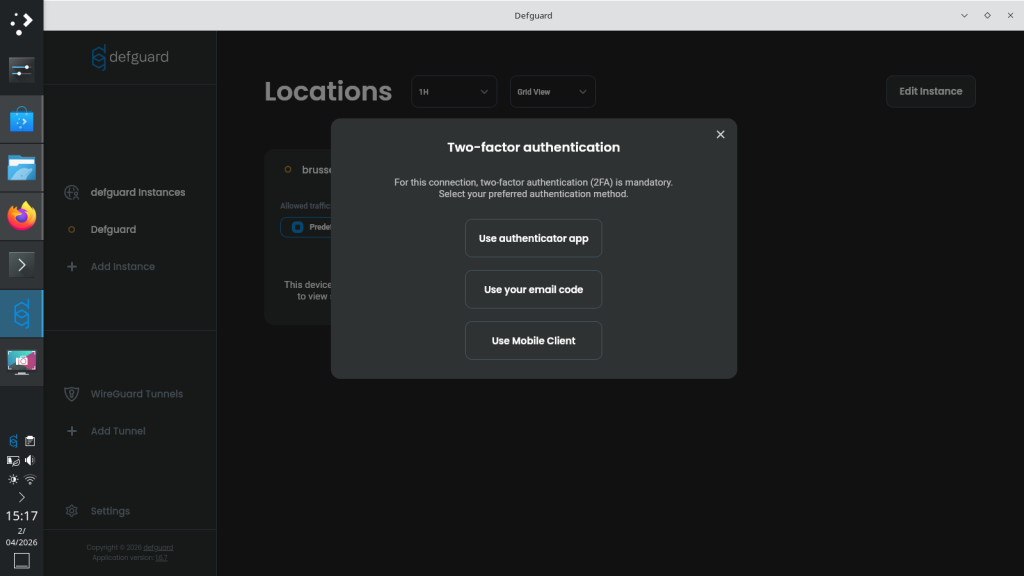
Use MFA to authenticate.
You are now successfully connected.
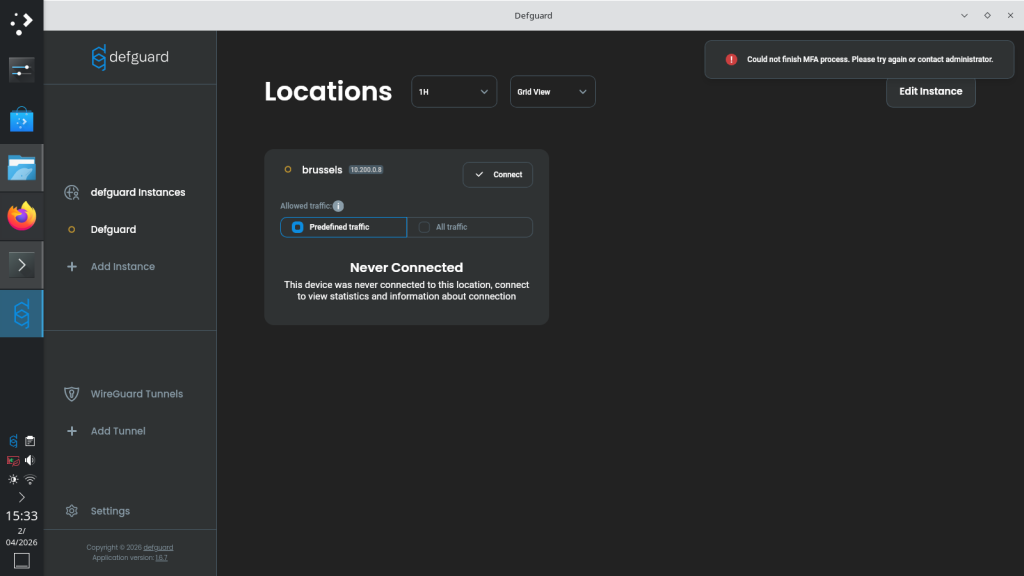
Good luck! You are virtually there!
4) Your installation not going to plan ?
Perhaps one of the remedies below helps
- Try uninstalling and reinstalling with the Defguard client with admin rights
- Try installing the client directly from e.g. defguard.net or the app store
- Ubuntu needs an extra package;
sudo apt install resolvconf - A token is only valid for 24h, request a new one
- Arch Linux with Nvidia GPU gives white screen? `GDK_BACKEND=x11 WEBKIT_DISABLE_DMABUF_RENDERER=1 defguard-client` does the trick.